Organising Work and Personal Development in VS Code
If you want to run two separate VS Code instances on Ubuntu, each tied to different GitHub accounts or workspaces, here's a complete guide on how to set it up effectively.
Updated October 22, 2026
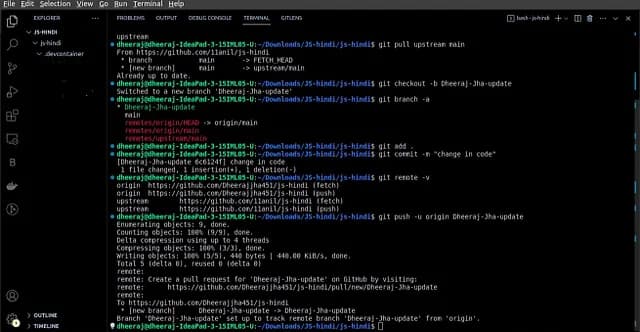
I wanted a clear way to move between work and personal projects on Ubuntu without repeatedly rearranging extensions and settings. VS Code provides several ways to do that, depending on how much separation you need.
The important detail is that editor settings, Git commit identity, and GitHub authentication are separate things. Choosing an editor profile does not automatically set the correct author email for a repository.
Option 1: Use profiles for different editor setups
Profiles are a convenient starting point when the main requirement is different settings, extensions, snippets, and layouts. Create a Work profile and a Personal profile through VS Code’s Profiles interface, then associate the appropriate folders with them.
You can also open a folder with a named profile from the command line:
code --new-window --profile Work /path/to/work-project
code --new-window --profile Personal /path/to/personal-project
This makes the workspace recognisable and avoids loading every extension in every project. Review Settings Sync separately if you use it, so you know which settings and profiles are synchronised.
Option 2: Use separate user data directories
For a more distinct editor configuration, launch the same VS Code installation with separate user data and extension directories:
code --new-window \
  --user-data-dir "$HOME/.vscode-work-data" \
  --extensions-dir "$HOME/.vscode-work-extensions" \
  /path/to/work-project
Use different paths for the personal setup. These directories isolate editor data and extension installations, but both processes still run as your operating system user. They can still access that user’s filesystem and Git configuration.
This is useful organisational separation, not an operating system security boundary.
Option 3: Run Stable and Insiders side by side
VS Code Stable and Insiders can coexist and use separate application data. Install them using the current official Linux instructions, then launch them with:
code /path/to/work-project
code-insiders /path/to/personal-project
Insiders receives preview changes. Use it when you want that release channel, rather than treating it as a requirement for maintaining two project contexts.
Configure Git identity in each repository
Inside the work repository:
git config user.name "Your Name"
git config user.email "work@example.com"
git config --show-origin --get user.email
Inside the personal repository, set the personal email instead. Repository level configuration is read by Git regardless of which editor opens the folder.
For separate GitHub credentials, configure the appropriate SSH keys or credential manager accounts as well. The two GitHub accounts guide covers that setup.
Choose the amount of separation you need
| Requirement | Useful option |
|---|---|
| Different extensions and settings | Profiles |
| Separate editor data directories | --user-data-dir and --extensions-dir |
| Different release channels | Stable and Insiders |
| Correct commit author and remote account | Repository Git configuration and SSH/credentials |
Before making a work commit, check the repository, remote, and author email. The editor can make the contexts easier to recognise; Git configuration and authentication determine how the change is recorded and pushed.