The Git Habits That Help Me Deliver Reliable Work With a Team
Master essential Git skills for professional software development. Learn branching strategies, conflict resolution, pull requests, rebasing, and collaboration workflows used in real world company environments.
Updated October 22, 2026
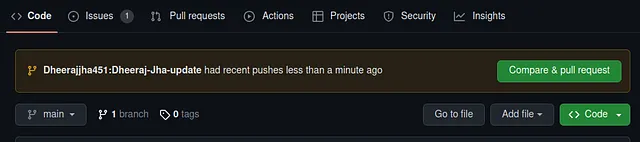
Working with Git in a team means making your changes understandable and safe for someone else to integrate. Creating commits is one part of that; reviewing diffs, handling conflicts, and following the repository’s workflow are equally important.
These are the skills I would practise before joining a shared codebase. The commands use main as the target branch; use the branch and review policy defined by your team.
1. Understand what a branch represents
A branch is a movable reference to a commit. Feature and hotfix branches are naming and workflow conventions, rather than special kinds of Git object.
Create a focused branch for the change you are working on:
git fetch origin
git switch -c feature/order-filter origin/main
Keep the scope small enough that a reviewer can understand the purpose and verify the result. Branching allows people to work independently, but it does not prevent conflicts when their changes meet.
2. Know what you are committing
Use these commands regularly:
| Command | What it shows |
|---|---|
git status | Current branch, staged changes, and working tree changes |
git diff | Tracked changes that are not staged |
git diff --cached | The changes included in the next commit |
git log --oneline --graph | Recent commit relationships |
Stage the files or hunks that belong together. A commit message should explain the change, and the diff should support that explanation.
git add path/to/changed-file
git diff --cached
git commit -m "Add workspace filtering to the order list"
3. Keep commit identity separate from authentication
The SSH key or credential used to access a remote is separate from the name and email stored in commits. Configure the author identity inside each repository when personal and work projects use different details:
git config user.name "Your Name"
git config user.email "work@example.com"
git config --get user.email
Run the equivalent configuration with your personal email inside the personal repository. Running both email commands in the same repository simply replaces the first setting.
For separate SSH identities, see my two account setup guide.
4. Integrate changes according to the team’s policy
git fetch updates your view of remote branches. It does not merge anything into your current branch. After fetching, choose the integration operation your team expects.
- Merge: combines histories and may create a merge commit. It can also fast forward when no merge commit is required.
- Rebase: replays commits onto another base, changing their commit IDs.
git fetch origin
# Choose one according to the branch policy:
git merge origin/main
# Or, for a branch where rewriting history is appropriate:
git rebase origin/main
Do not run both as a routine sequence. Coordinate before rebasing a branch used by other people. If a published personal branch is rebased, updating its remote may require --force-with-lease; check the branch policy and remote changes before doing that.
5. Resolve conflicts by understanding both changes
A conflict can involve overlapping edits, a rename, or a file deleted on one side and modified on the other. Choosing “ours” or “theirs” without understanding the intent can produce valid syntax with incorrect behaviour.
- Run
git statusto identify the conflicted files. - Read both changes and the surrounding code.
- Edit the files into the intended combined result.
- Stage the resolved files and run the relevant checks.
- Use
git merge --continueorgit rebase --continuefor the operation in progress.
If you need to stop, use the matching --abort command. Begin integrations with a clean working tree so unrelated changes are easier to protect.
6. Prepare a pull request someone can review
Push the branch to the intended remote and request review through the hosting platform. A pull request description should state the problem, the resulting behaviour, and the verification performed.
Before requesting review:
- Remove unrelated edits and temporary files.
- Read the complete diff, including configuration changes.
- Run checks appropriate to the change.
- Explain anything the reviewer needs to reproduce or evaluate.
Respond to review on the same branch. Keep the description aligned with the final implementation as the scope changes.
7. Use stash and recovery tools deliberately
A stash can temporarily preserve uncommitted work. Include untracked files explicitly if they belong to the work you need to save:
git stash push -u -m "Order filter work in progress"
git stash list
git stash apply stash@{0}
apply keeps the stash entry. Inspect the restored work before dropping it. Avoid clearing all stashes as routine housekeeping when they may contain unfinished work.
For a missing commit, git reflog can help locate previous local branch positions. For an already shared mistake, a corrective commit or a reviewed revert is often easier to coordinate than rewriting shared history.
8. Learn the repository’s release workflow
Some teams use GitHub Flow, others use release branches or trunk based development. Read the repository’s policy before assuming main is the release branch or every change needs a long lived feature branch.
Use tags intentionally when marking releases. Push a specific tag rather than every local tag unless that is the intended operation:
git tag -a v1.0.0 -m "Release 1.0.0"
git push origin v1.0.0
The strongest Git habit is being able to explain the state of your branch and the consequences of the next command. That makes collaboration and recovery much less stressful.
Reference
Git command documentation covers the exact behaviour of merge, rebase, fetch, stash, and other operations.